How to extract
a tattoo stencil.
Stencil Extraction helps you add tattoos you already have to your plan. It turns a photo of a single tattoo into a stencil you can place on the manikin, so you can see how new pieces might sit alongside it.
You choose the tattoo by drawing an outline around it. Only the area inside that outline is sent to our AI provider.
This guide follows one photo through Stencil LAB, from choosing the image to checking the finished stencil.
Choosing a
clear photo.
A clear photo gives extraction more detail to work with. These few things can help when you’re taking or choosing one.
-
A straight-on view
Try to take the photo straight on, with the whole tattoo visible. An angled view can distort its shape or hide some of the detail.
-
Even light
Daylight near a window often works well. Strong shadows or glare can hide the lines, so it helps to keep the light even across the tattoo.
-
Detail in focus
Get close enough to see the finer lines, while keeping the whole tattoo in view. If the detail looks blurred in the photo, it may be missed in the stencil.
-
One tattoo at a time
Choose a piece whose edges you can see clearly. Nearby tattoos can be in the photo; you’ll leave them outside the outline in the next step.
Making your
stencil.
-
Choose your photo in Stencil LAB
Add your image in Stencil LAB. When you’re asked what kind of image it is, choose A photo of a tattoo. This opens the outline tool.
If you have artwork on a plain background, such as a drawing or lettering, choose A design instead. You can add that directly to the Stack without using extraction.
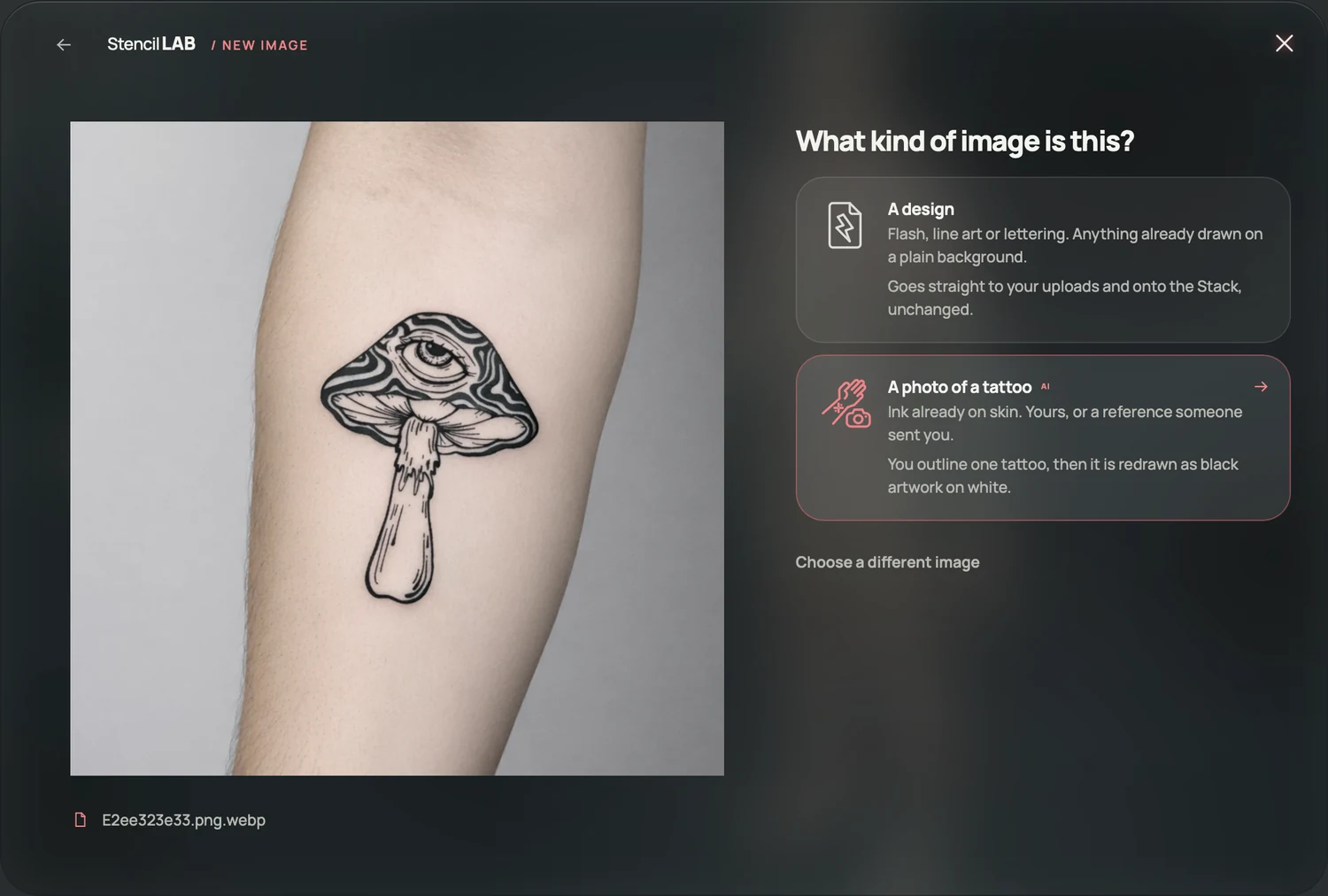
Choose “A photo of a tattoo” for ink that’s already on skin. -
Draw an outline around the tattoo
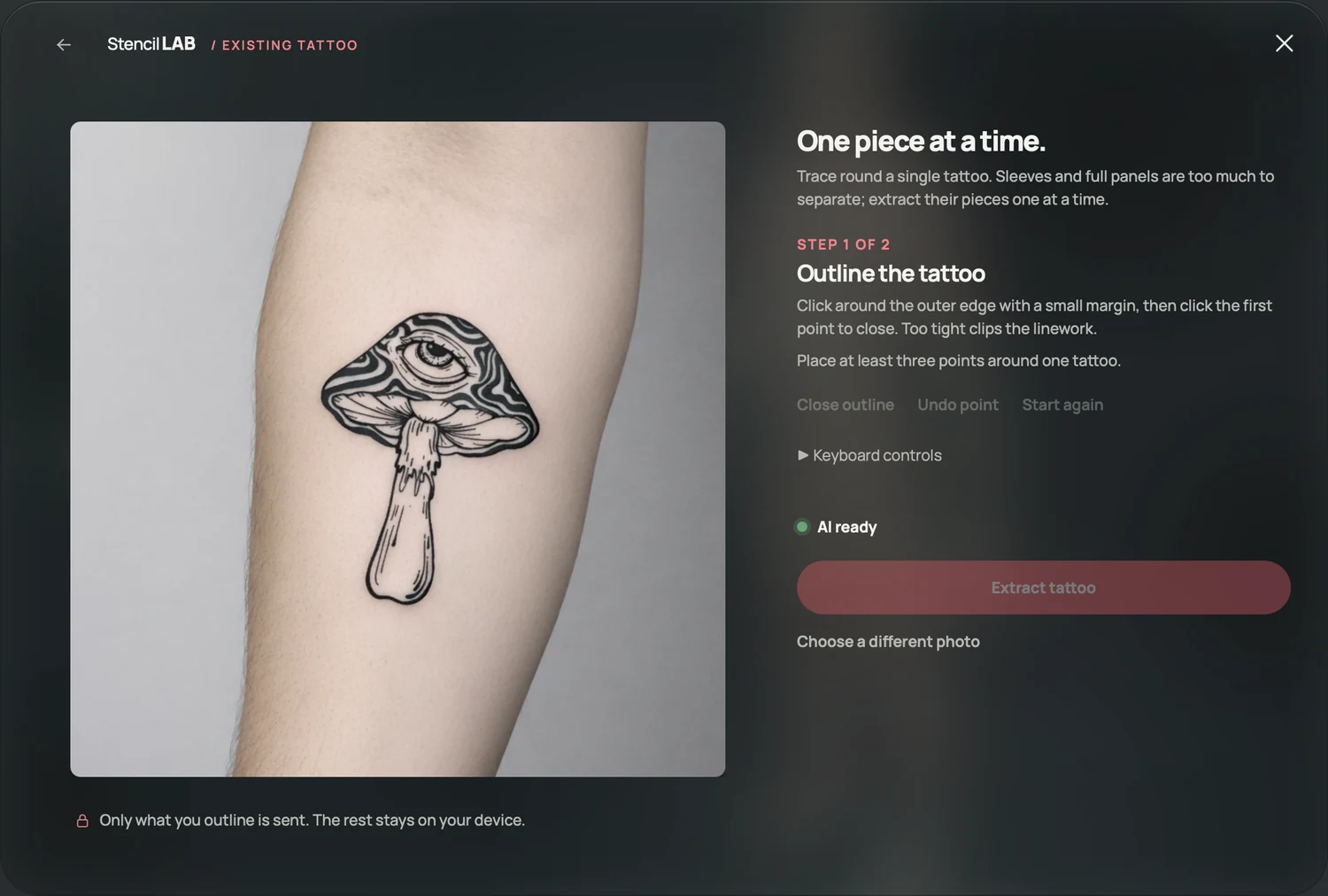
Click around the outside of the tattoo to add points. Use at least three, then click the first point again or choose Close outline to join them.
Leave a little space between the outline and the tattoo so fine lines aren’t cut off. Undo point removes the last point if you need to change it.
In this example, the outline follows the mushroom’s cap and stem, leaving nearby tattoos outside. When you’re happy with your selection, choose Extract tattoo.
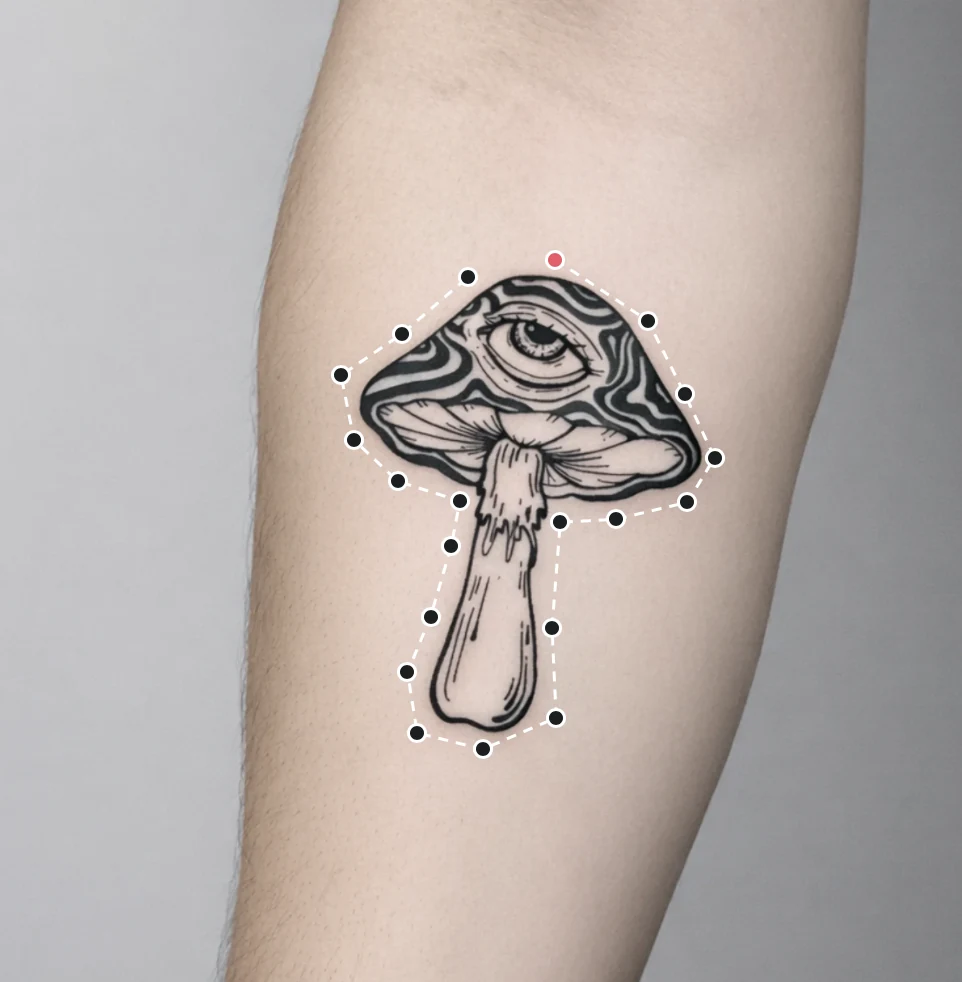
The outline marks the area that will be used. Nothing is sent until you choose Extract tattoo. -
What happens during extraction
The selected area goes to our AI provider, which uses it to make a black-and-white version of the tattoo. It tries to separate the artwork from the surrounding skin and background.
Everything outside your outline is removed from the image before it’s sent. The rest of your photo stays on your device and isn’t included in the extraction request.

You’ll see this animation while the stencil is being made. -
Compare the stencil with your photo
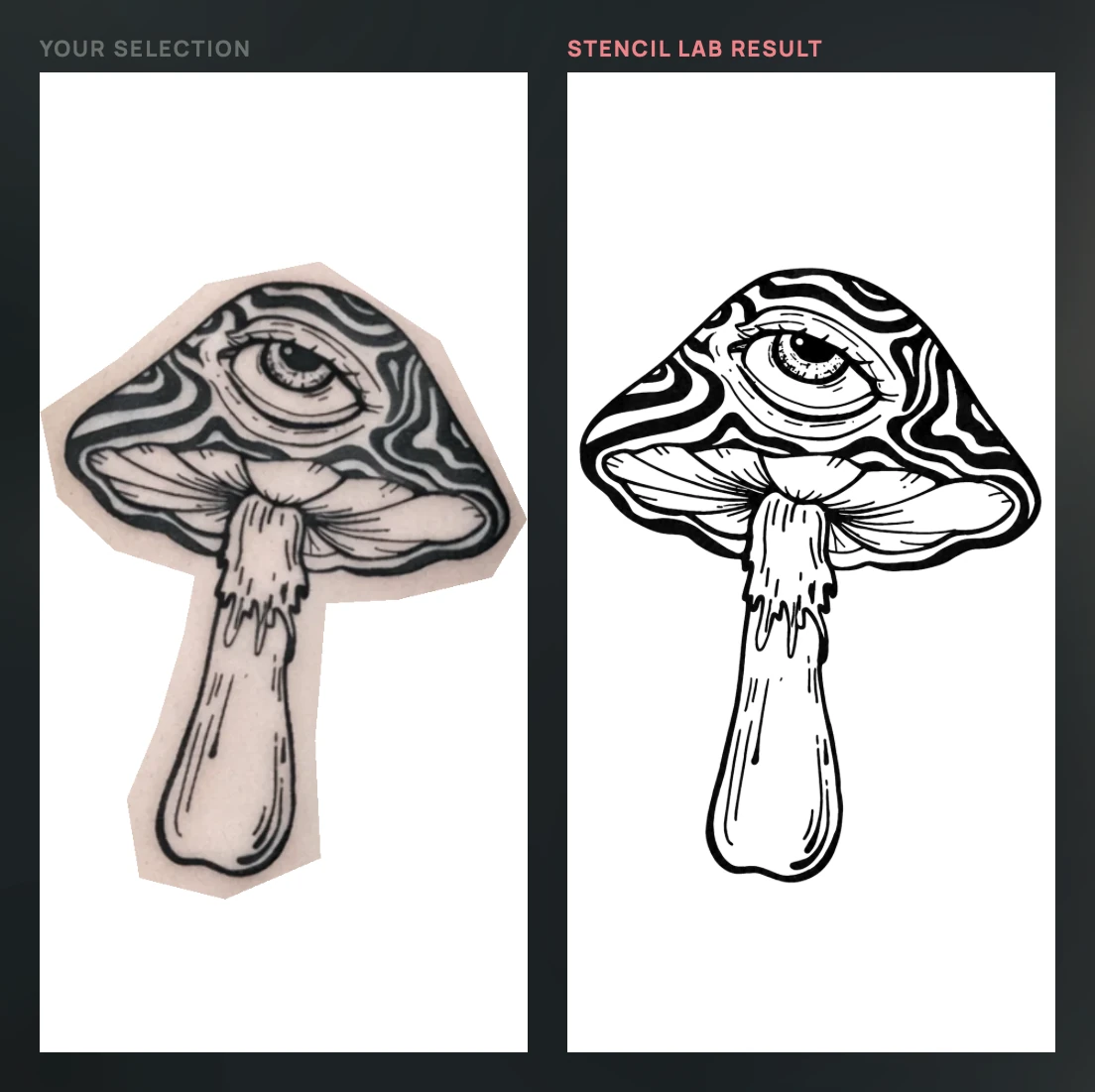
Your selected photo and the stencil appear side by side. It’s worth looking at the fine lines, shaded areas and closely packed detail. AI can change or miss parts of the original tattoo.
If you’re happy with it, give the stencil a name and add it to the Stack, or download it as a PNG image. You can then place it on the manikin and try new designs around it.
If something doesn’t look right, a clearer photo or an adjusted outline may help before you try again.
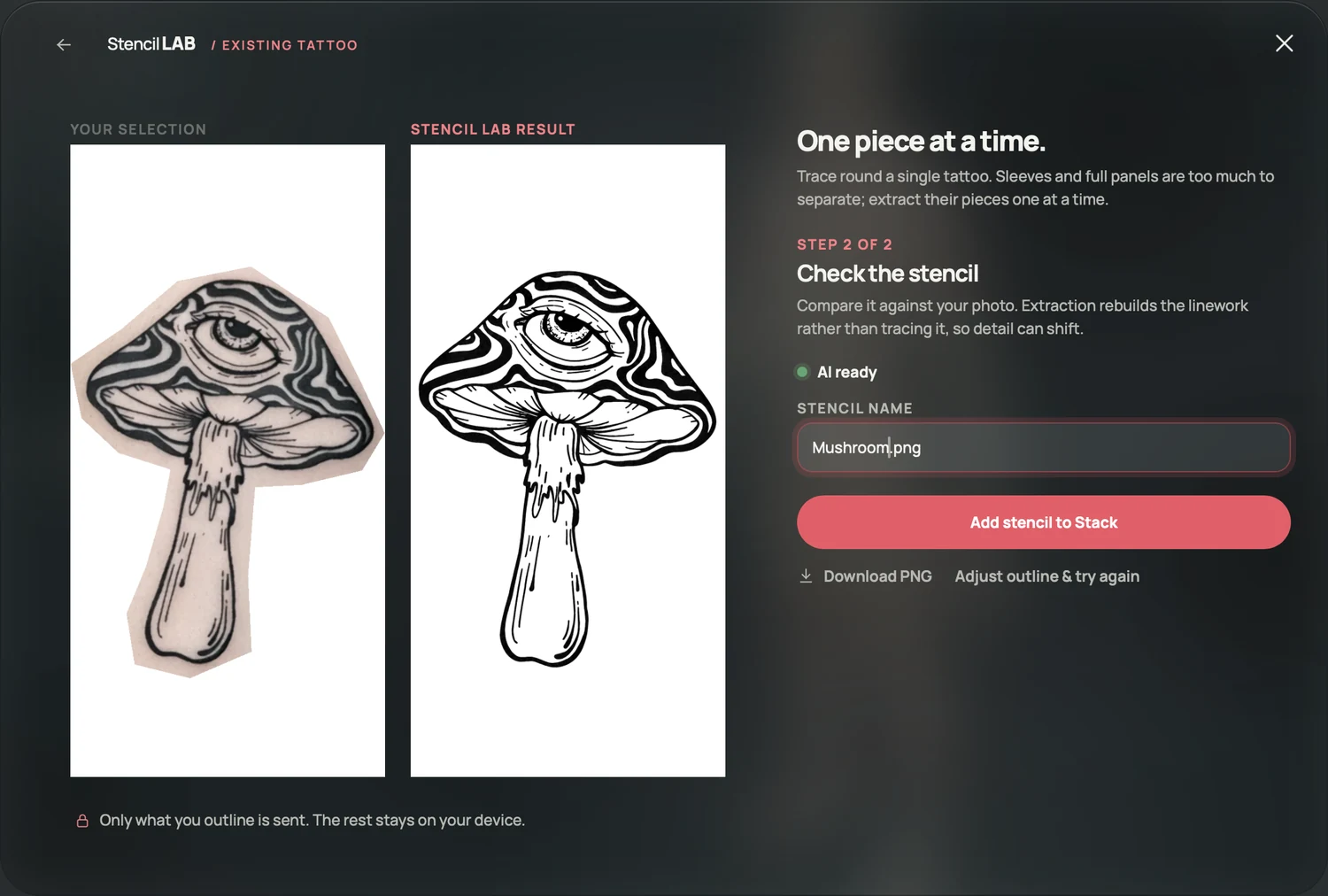
Check the details that matter to you before adding the stencil to your plan.

Working with
several tattoos.
Extraction is designed for a single, clearly visible tattoo. A full sleeve or a large connected panel has overlapping details that it can’t reliably separate.
For separate tattoos in a patchwork sleeve, you can extract each one in turn and add them to your plan. You’ll have a stencil for each piece, ready to position and adjust individually.
Open Stensyls↗